> For the complete documentation index, see [llms.txt](https://docs.dbnl.com/llms.txt). Markdown versions of documentation pages are available by appending `.md` to page URLs; this page is available as [Markdown](https://docs.dbnl.com/workflow/metrics.md).
# Metrics
Codify signals to track behavior that matters
{% hint style="info" %}
**Distributional is now** [**Talaria Scientific**](https://talariasci.com)**.** The DBNL product described in these docs has been sunset; this documentation is preserved for reference. Read [the announcement](https://distributional.com/blog/distributional-is-now-talaria).
{% endhint %}
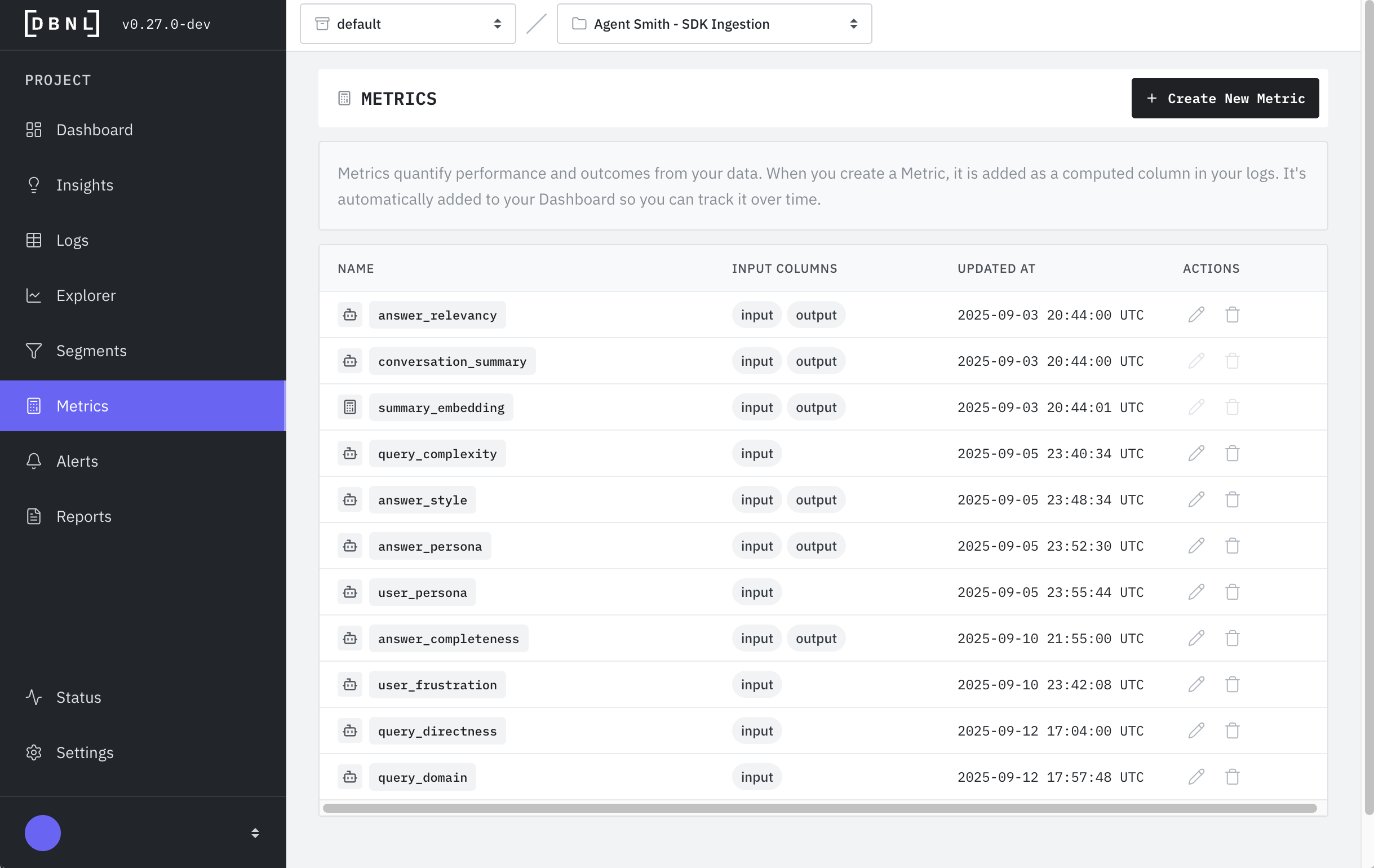
A Metric is a mapping from [Columns](/configuration/data-pipeline.md#columns) into meaningful numeric values representing cost, quality, performance, or other behavioral characteristics. Metrics are computed for every ingested log or trace as part of the [DBNL Data Pipeline](/configuration/data-pipeline.md) and show up in the [Logs](/workflow/logs.md) view, [Explorer](/workflow/explorer.md) pages, and [Metrics Dashboard](/workflow/dashboards.md#metrics-dashboard).
DBNL comes with many built in metrics and templates that can be customized. Fundamentally, Metrics are one of two types:
* [**LLM-as-judge Metrics**](#llm-as-judge-metrics): Evals and judges that require an LLM to compute a score or classification based on a prompt.
* [**Standard Metrics**](#standard-metrics): Functions that can be computed using non-LLM methods like traditional Natural Language Processing (NLP) metrics, statistical operations, and other common mapping [functions](/reference/query-language/functions.md).
### Default Metrics
Every product contains the following metrics by default, computed using the required `input` and `output` fields of the [DBNL Semantic Convention](/configuration/dbnl-semantic-convention.md) and the default [Model Connection](/configuration/model-connections.md) for the [Project](/workflow/projects.md):
* `answer_relevancy`: Determines if the `input` is relevant to the `output`. See [template](/workflow/metrics/llm-as-judge-metric-templates.md#llm_answer_relevancy).
* `user_frustration`: Assesses the level of frustration of the `input` based on tone, word choice, and other properties. See [template](/workflow/metrics/llm-as-judge-metric-templates.md#llm_text_frustration).
* `topic`: Classifies the conversation into a topic based on the `input` and `output`. This Metric is created after topics are automatically generated from the first 7 days of ingested data. Topics can be manually adjusted by editing the [template](/workflow/metrics/llm-as-judge-metric-templates.md#topic).
* `conversation_summary` (immutable): A summary of the `input` and `output`, used as part of `topic` generation.
* `summary_embedding` (immutable): An embedding of the `conversation_summary`, used as part of `topic` generation.
### Creating a Metric
Metrics can be created by clicking on the "+ Create New Metric" button on the Metrics page.
### When to Create a Metric
Create custom metrics when you need to:
* **Track specific business KPIs**: Cost per conversation, resolution rate, escalation frequency
* **Monitor quality signals**: Response accuracy, hallucination detection, safety violations
* **Measure performance**: Response time, token efficiency, context utilization
* **Validate against requirements**: Brand tone compliance, length constraints, format adherence
* **Debug recurring issues**: Track patterns identified in Insights or Logs exploration
**Good metrics are:**
* **Actionable**: The metric should inform decisions or trigger alerts
* **Measurable**: Clear numeric or categorical output for every log
* **Relevant**: Tied to product quality, user experience, or business outcomes
* **Consistent**: Produces reliable results across similar inputs
{% hint style="info" %}
Start with DBNL's default metrics and templates. Only create custom metrics after you've identified specific signals through the [Explorer](/workflow/explorer.md) or [Insights](/workflow/insights.md) that aren't covered by existing metrics.
{% endhint %}
### When to Use Standard vs LLM-as-Judge Metrics
* **Use Standard Metrics when:** You need fast, deterministic calculations (word counts, text length, keyword matching, readability scores)
* **Use LLM-as-Judge Metrics when:** You need semantic understanding (relevance, tone, quality, groundedness)
Standard Metrics are faster and cheaper to compute, so prefer them when possible.
### LLM-as-Judge Metrics
LLM-as-Judge Metrics can be customized from the built in [LLM-as-Judge Metric Templates](/workflow/metrics/llm-as-judge-metric-templates.md). Each of these Metrics is one of two types:
* Classifier Metric: Outputs a categorical value equal to one of a predefined set of classes. Example: [`llm_answer_groundedness`](/workflow/metrics/llm-as-judge-metric-templates.md#llm_answer_groundedness).
* Scorer Metric: Outputs an integer in the range `[1, 2, 3, 4, 5]`. Example: [`llm_text_frustration`](/workflow/metrics/llm-as-judge-metric-templates.md#llm_text_frustration).
### Standard Metrics
Standard Metrics are functions that can be computed using non-LLM methods. They can be built using the [Functions](/reference/query-language/functions.md) available in the [DBNL Query Language](/reference/query-language.md).
#### Creating Standard Metrics
Standard Metrics use query language expressions to compute values from your log columns. Here are common examples:
Example 1: Calculate Response Length
Track the word count of AI responses:
* **Metric Name:** `response_word_count`
* **Type:** Standard Metric
* **Formula:** `word_count({RUN}.output)`
Example 2: Detect Refusal Keywords
Identify when the AI refuses to answer:
* **Metric Name:** `contains_refusal`
* **Type:** Standard Metric
* **Formula:** `or(or(contains(lower({RUN}.output), "sorry"), contains(lower({RUN}.output), "cannot")), contains(lower({RUN}.output), "unable"))`
Example 3: Calculate Input Complexity
Measure how complex user prompts are:
* **Metric Name:** `input_reading_level`
* **Type:** Standard Metric
* **Formula:** `flesch_kincaid_grade({RUN}.input)`
Example 4: Detect Question Marks
Check if input is a question:
* **Metric Name:** `is_question`
* **Type:** Standard Metric
* **Formula:** `contains({RUN}.input, "?")`
Example 5: Compare String Similarity
Measure how similar input and output are (useful for detecting parroting):
* **Metric Name:** `input_output_similarity`
* **Type:** Standard Metric
* **Formula:** `subtract(1.0, divide(levenshtein({RUN}.input, {RUN}.output), max(len({RUN}.input), len({RUN}.output))))`
### Troubleshooting Metrics
Metric Not Appearing in Logs or Dashboard
**Possible causes:**
* The metric was created after logs were ingested - metrics only compute for new data after creation
* The pipeline run failed during the Enrich step - check the [Status page](/workflow/status.md)
* The metric references a column that doesn't exist in your data
**Solution**: Check Status page for errors, verify column names, and wait for the next pipeline run.
LLM-as-Judge Metric Returns Unexpected Values
**Possible causes:**
* The Model Connection is using a different model than expected
* The evaluation prompt is ambiguous or unclear
* The column placeholders (e.g., `{input}`, `{output}`) are incorrect
**Solution**: Test your Model Connection using the "Validate" button, review example logs to check if columns have expected values, and refine the evaluation prompt for clarity.
Standard Metric Formula Errors
**Common errors:**
```
# Error: Column doesn't exist
word_count(ouput) # Typo - should be 'output'
# Error: Wrong function name
wordcount(output) # Should be 'word_count'
# Error: Type mismatch
word_count(total_token_count) # Can't count words in a number
# Error: Division by zero
divide(output_tokens, input_tokens) # Fails if input_tokens is 0
```
**Solution**: Use the [Query Language Functions](/reference/query-language/functions.md) reference to verify syntax, check column names match your data exactly, and add null/zero checks with conditionals.
Metric Computation is Slow
**Possible causes:**
* LLM-as-Judge metrics are inherently slower (require Model Connection calls for each log)
* Your Model Connection has high latency or rate limits
* Large log volume
**Solution**: Use Standard Metrics where possible, consider a faster Model Connection (like local NVIDIA NIM), or increase pipeline timeout settings.
Metric Values Are All Null
**Possible causes:**
* Required columns are missing from your logs
* Formula syntax error causing computation to fail silently
* Model Connection is unreachable or returning errors
**Solution**: Check logs to verify required columns exist, test formula on a small subset, validate Model Connection, and check Status page for pipeline errors.
{% hint style="info" %}
**Need more help?** Contact or visit [distributional.com/contact](https://distributional.com/contact). Include your metric definition and any error messages from the Status page.
{% endhint %}