> For the complete documentation index, see [llms.txt](https://docs.dbnl.com/llms.txt). Markdown versions of documentation pages are available by appending `.md` to page URLs; this page is available as [Markdown](https://docs.dbnl.com/v0.24.x/using-distributional/projects.md).
# Projects
Projects are the main organizational tool in DBNL. Each Project lives within a [Namespace](/v0.24.x/using-distributional/access-controls/organization-and-namespaces.md#namespaces) in your [Organization](/v0.24.x/using-distributional/access-controls/organization-and-namespaces.md#organization) and is accessible by everyone in that Namespace. Generally, you'll create one Project for every AI application that you'd like to test with DBNL. The list of Projects available to you is the default landing page when browsing to the DBNL UI.
## What's in a Project?
Your Project will contain all of your app's [Runs](/v0.24.x/using-distributional/runs.md) — a collection of results from your app — and all of the [tests](/v0.24.x/using-distributional/tests.md) that you've defined to monitor the behavior of your app. It also has a name and various configurable properties like a [default Baseline Run](/v0.24.x/using-distributional/runs/setting-a-baseline-run.md#setting-a-default-baseline-run) and [Notifications](/v0.24.x/using-distributional/notifications.md).
The Project Header in DBNL
## Creating a Project
### From Scratch
You can create a Project either via the UI or the SDK:
{% tabs %}
{% tab title="UI" %}
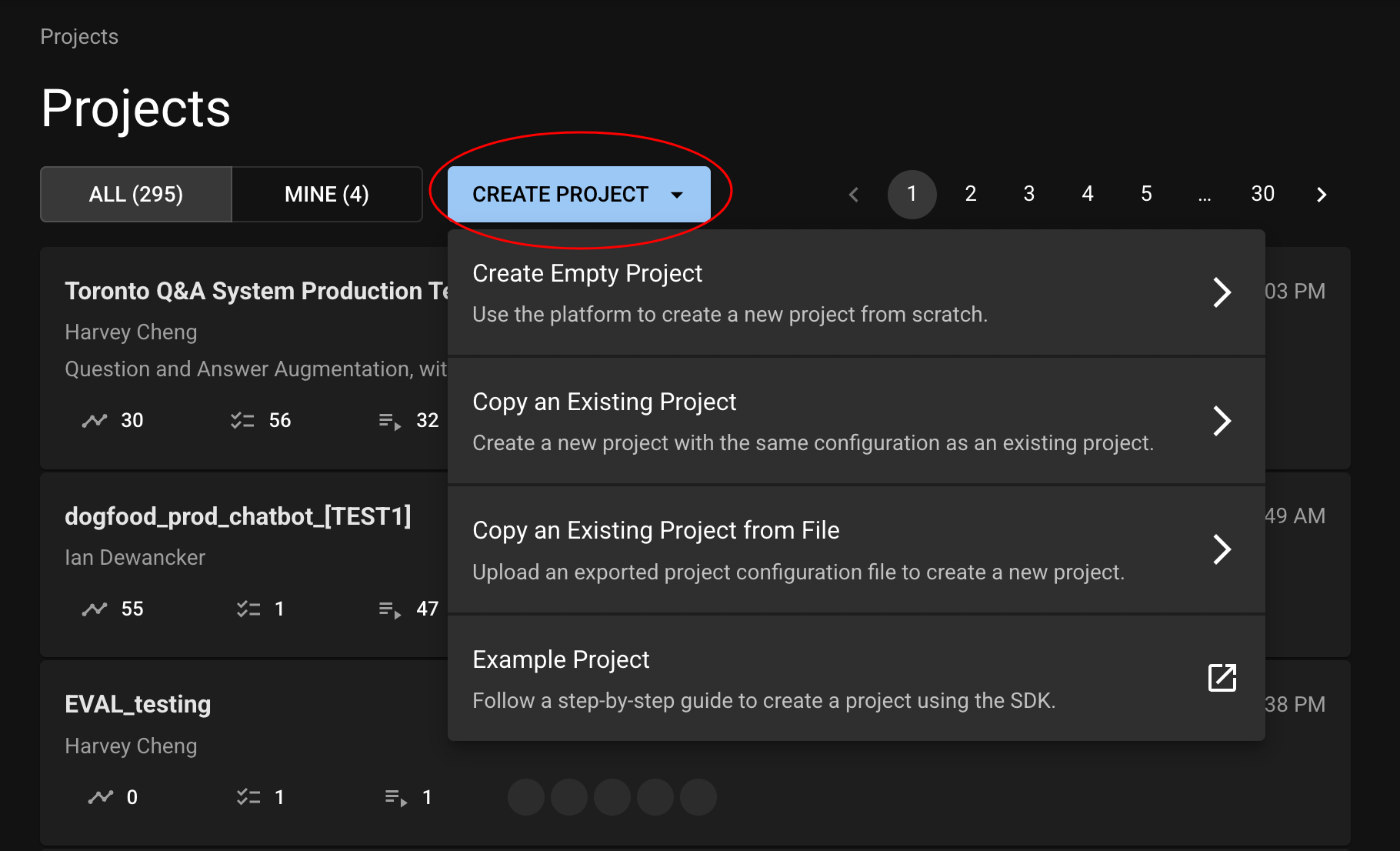
Simply click the "Create Project" button from the Project list view and choose an option.
Project List
{% endtab %}
{% tab title="SDK" %}
Creating a project with the SDK can be done easily with the [`create_project`](#creating-a-project) function.
```python
import dbnl
dbnl.login()
project = dbnl.create_project(
name="My Project",
description="This is a very important project."
)
```
{% endtab %}
{% endtabs %}
### Copying a Project
You can quickly copy an existing Project to get up and running with a new one. This will copy the following items into your new Project:
* Test specifications
* Test tags
* Notification rules
There are a couple of ways to copy a Project.
#### Exporting and Importing
Any Project can be exported to a JSON file; that JSON file can then be adjusted to your liking and imported as a new Project. This is doable both via the UI and the SDK:
{% tabs %}
{% tab title="UI" %}
#### Exporting
To export a Project, simply click the download icon on the Project page, in the header.
Exporting a Project
This will download the Project's JSON to your computer. There is an example JSON in the expandable section below.
#### Importing
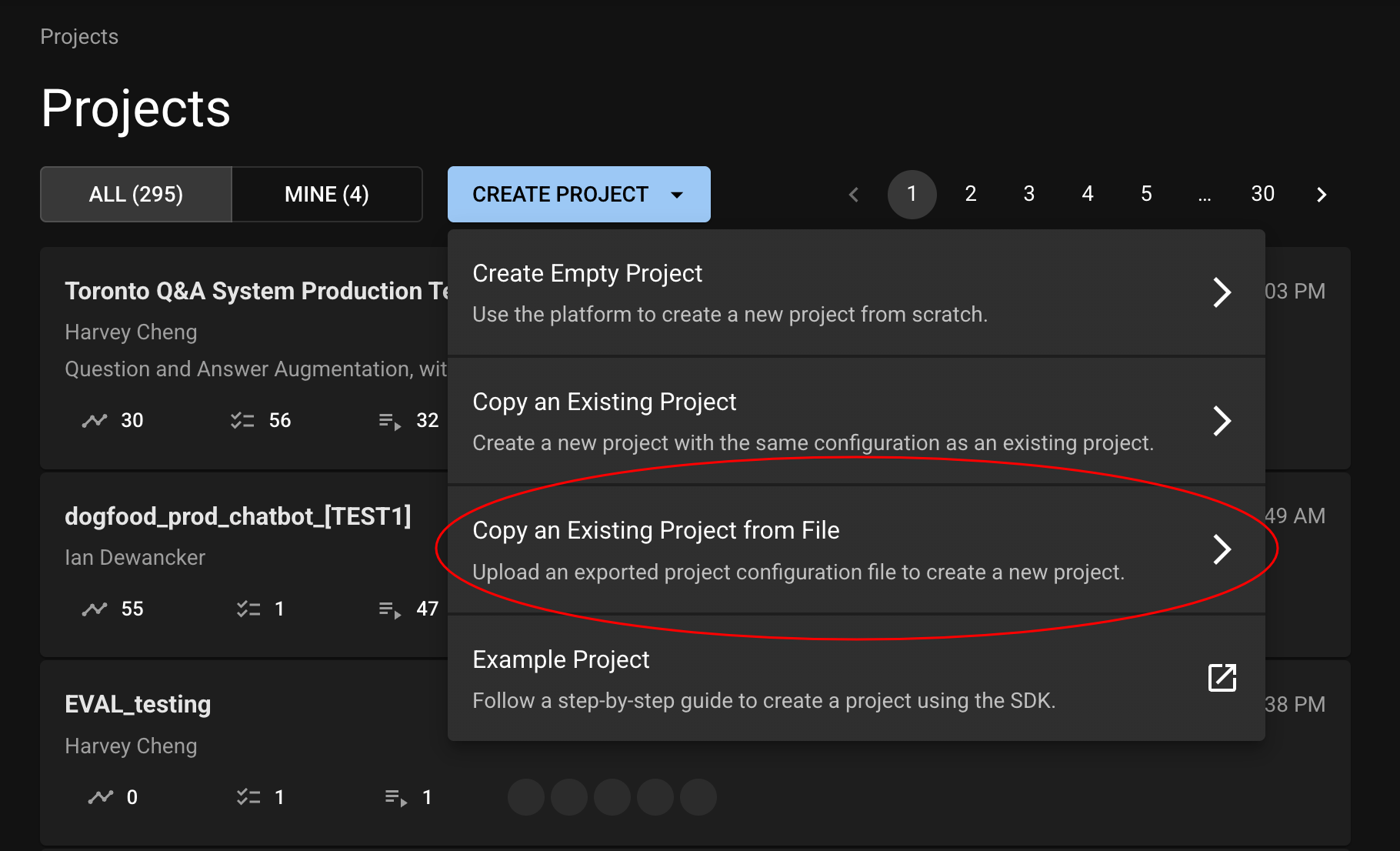
Once you have a Project JSON, you can edit it as you'd like, and then import it by clicking the "Create Project" button on the Project list and then clicking the "Copy an Existing Project from File" option.
Importing a Project
Fill out the name and description, click "Create Project", and you're all set!
{% endtab %}
{% tab title="SDK" %}
Exporting and importing a Project is done easily via the SDK functions `export_project_as_json` and `import_project_from_json`.
```python
import dbnl
dbnl.login()
# Export
project_1 = dbnl.get_or_create_project(name="Existing Project")
export_json = dbnl.export_project_as_json(project=proj1)
# Adjust the project values as you'd like. You will need to change the name.
# An example of the JSON structure is in the collapsible section below
export_json["project"]["name"] = "New Project"
# Import
project_2 = dbnl.import_project_from_json(params=export_json)
```
{% endtab %}
{% endtabs %}
Sample Project JSON
```json
{
"project": {
"name": "My Project",
"description": "This is my project."
},
"notification_rules": [
{
"conditions": [
{
"assertion_name": "less_than",
"assertion_params": { "other": 0.85 },
"query_name": "test_status_percentage_query",
"query_params": {
"exclude_tag_ids": [],
"include_tag_ids": [],
"require_tag_ids": [],
"statuses": ["PASSED"]
}
}
],
"name": "Alert if passed tests are less than 85%",
"notification_integration_names": ["Notification channel"],
"status": "ENABLED",
"trigger": "test_session.failed"
}
],
"tags": [
{
"name": "my-tag",
"description" :"This is my tag."
}
],
"test_specs": [
{
"assertion": { "name": "less_than", "params": { "other": 0.5 } },
"description": "Testing the difference in the example statistic",
"name": "Gr.0: Non Parametric Difference: Example_Statistic",
"statistic_inputs": [
{
"select_query_template": {
"filter": null,
"select": "{EXPERIMENT}.Example_Statistic"
}
},
{
"select_query_template": {
"filter": null,
"select": "{BASELINE}.Example_Statistic"
}
}
],
"statistic_name": "my_stat",
"statistic_params": {},
"tag_names": ["my-tag"]
}
]
}
```
#### Copying
You can also just directly copy a given Project. Again, this can be done via the UI or the SDK:
{% tabs %}
{% tab title="UI" %}
There are two ways to copy a Project from the UI:
#### From the "Create Project" Modal
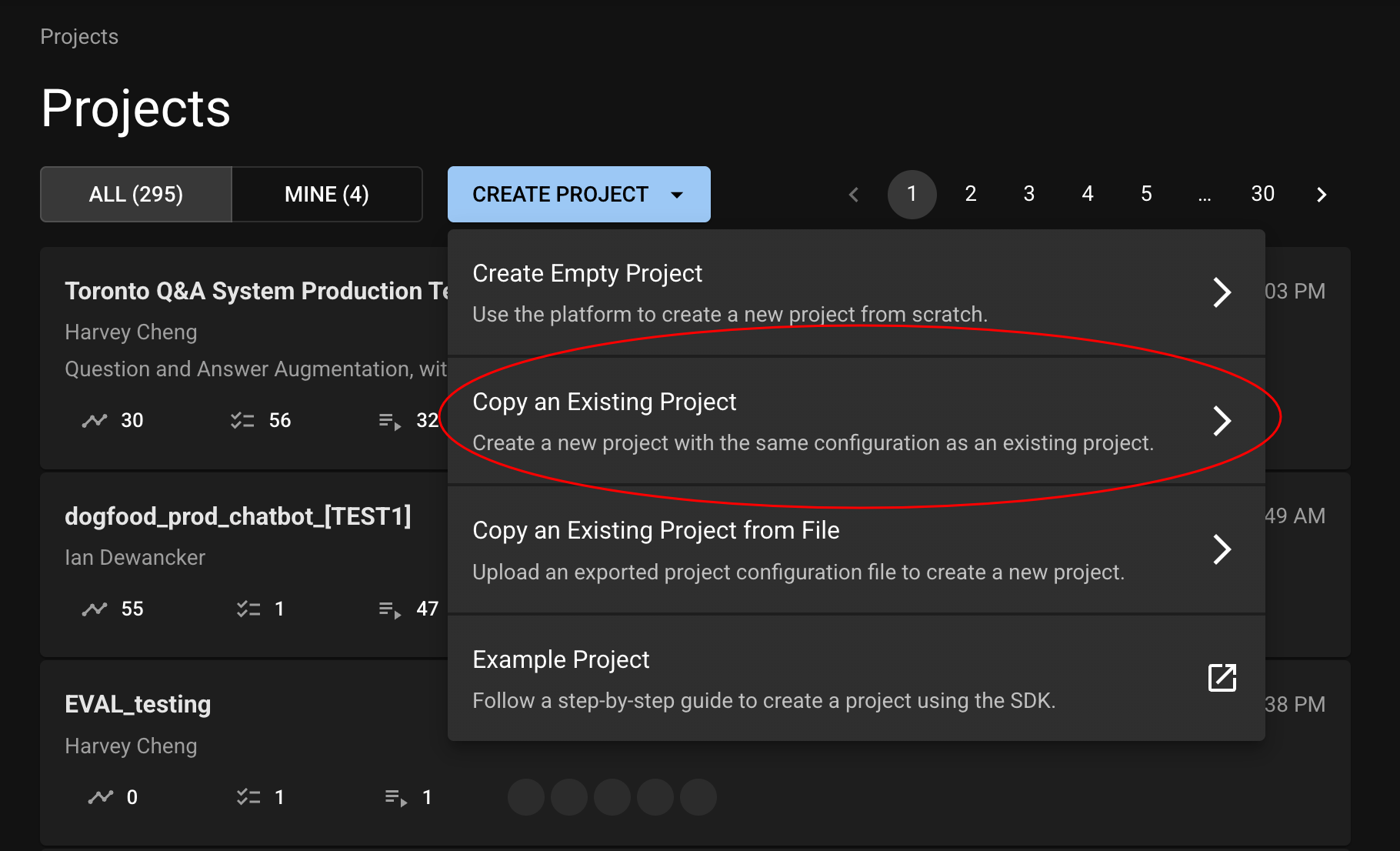
In the Project list, after you click "Create Project", you can click to the "Copy an Existing Project" option and choose a Project from the dropdown.
Copying a Project
#### From a Project Page
While viewing a Project, you can click the copy icon in the header to copy it to a new Project.
{% endtab %}
{% tab title="SDK" %}
Copying a Project is done easily via the SDK function `copy_project`.
```python
import dbnl
dbnl.login()
project_1 = dbnl.get_or_create_project(name="Existing Project")
project_2 = dbnl.copy_project(project=project_1, name="New Project")
```
{% endtab %}
{% endtabs %}