# Notifications

Notifications provide a way for users to be automatically notified about critical test events (e.g., failures or completions) via third-party tools like PagerDuty and Slack.

With Notifications you can:

* Add critical test failure alerting to your organization’s on-call
* Create custom notifications for specific feature tests
* Stay informed when a new test session has started

## What's in a Notification?

A Notification is composed of two major elements:

* The Notification Channel — this contains the metadata for how and where a Notification will be sent&#x20;
* The Notification Criteria — this defines the rules for when a Notification will be generated

## Setting up a Notification Channel in your Namespace

Before setting up a Notification in your project, you must have a Notification Channel set up in your Namespace. A Notification Channel describes who will be notified and how. A Notification Channel in a Namespace can be used by Notifications across all Projects belonging to that Namespace.

In adding your Notification Channel, you will be able to select which [third-party integration](#supported-third-party-notification-channels) you'd like to be notified through.

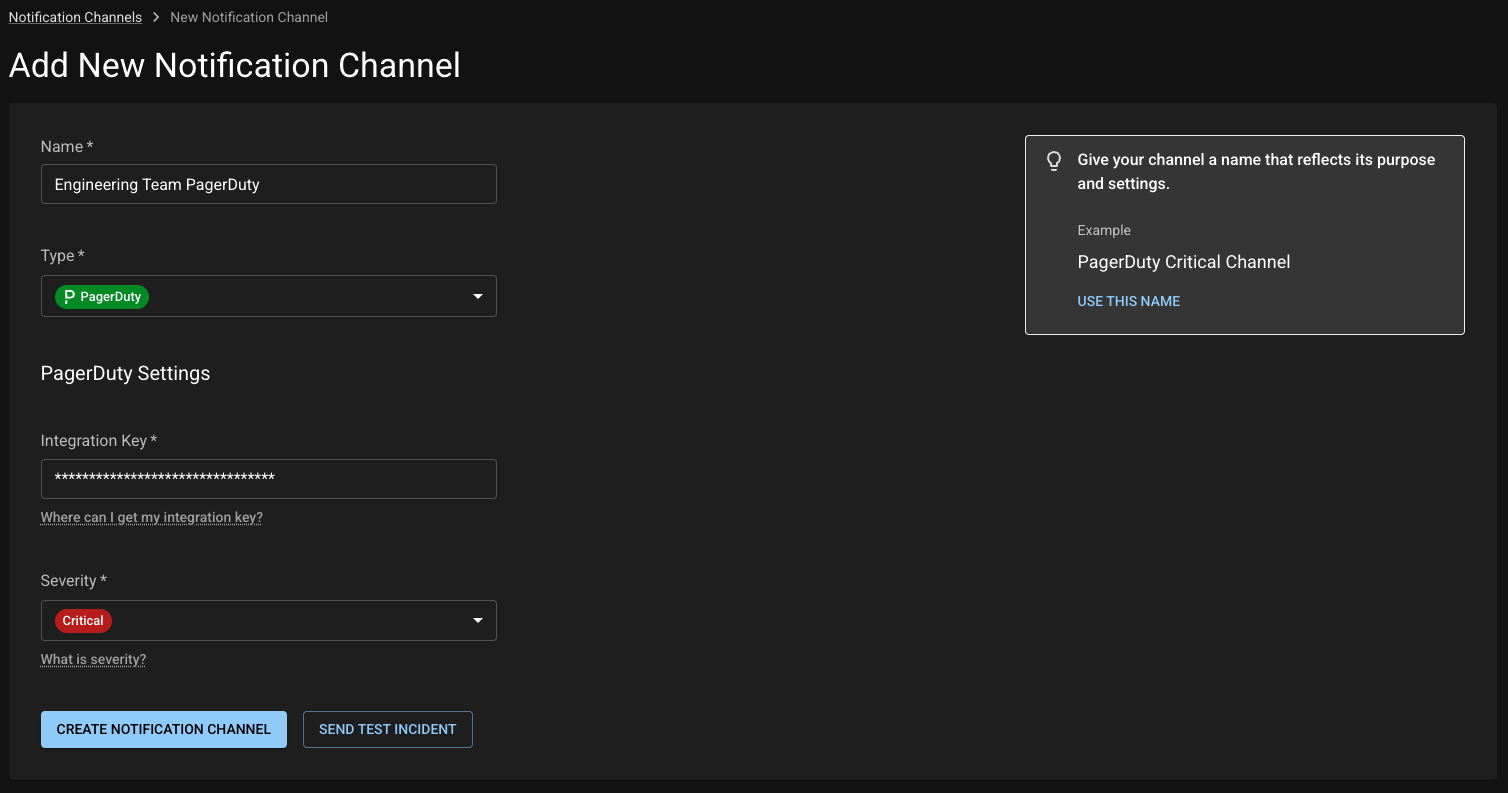
<figure><img src="/files/mzMHfmbYqNgxdhPH5T6A" alt=""><figcaption><p>Notification Channel creation form</p></figcaption></figure>

1. In your desired Namespace, choose Notification Channels in the menu sidebar. **Note:** you must be a Namespace admin in order to do this.
2. Click the **New Notification Channel** button to navigate to the creation form.
3. Fill out the appropriate fields.&#x20;
   1. **Optional:** If you’d like to test that your Notification Channel is set up correctly, click the **Test** button. If it is correctly set up, you should receive a notification through the integration you’ve selected.
4. Click the **Create Notification Channel** button. Your channel will now be available when setting up your Notification.

### Supported Third-Party Notification Channels

* [PagerDuty](https://www.pagerduty.com/)
* [Slack](https://slack.com/)

**Note**: More coming up in the product roadmap!

## Setting up a Notification in your Project

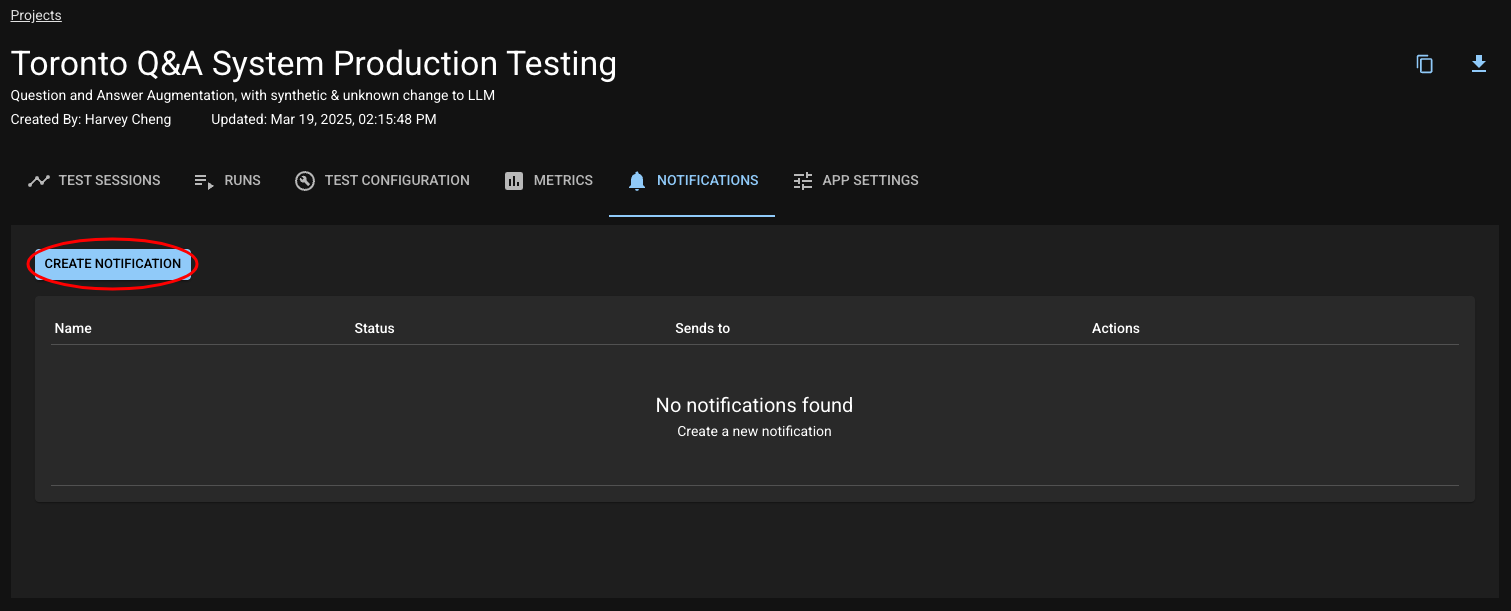
1. Navigate to your Project and click the Notifications tab.

<figure><img src="/files/qqaLhFF7KzrZD3ovnEZE" alt=""><figcaption></figcaption></figure>

2. Click the "New Notification" button to navigate to the creation form.

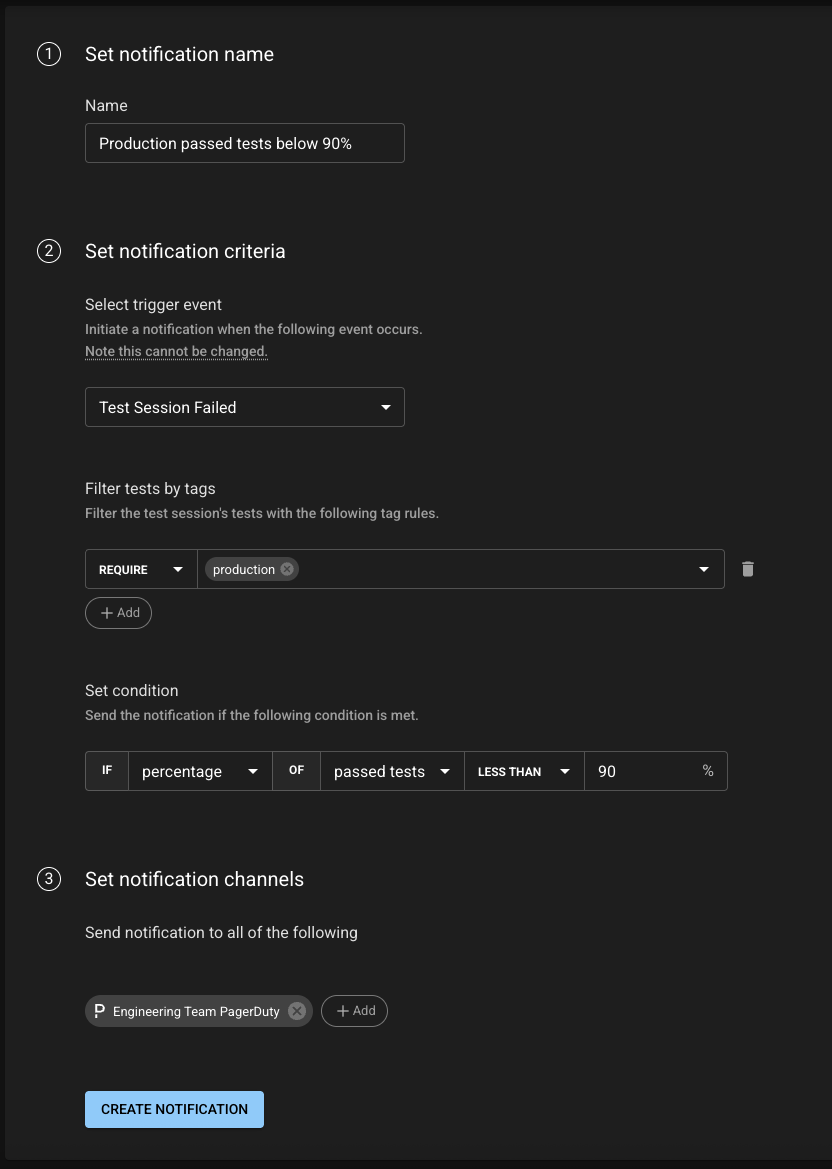
<figure><img src="/files/SdWZexa6g5NFH5l3volm" alt="" width="563"><figcaption><p>Notification creation form</p></figcaption></figure>

3. Set your Notification’s name, [criteria](#notification-criteria), and Notification Channels.
4. Click the **"**&#x43;reate Notification" button. Your Notification will now notify you when your specified criteria are met!

### Notification Criteria

<table data-header-hidden><thead><tr><th width="157"></th><th></th></tr></thead><tbody><tr><td><strong>Trigger Event</strong></td><td>The trigger event describes when your Notification is initiated. Trigger events are based on Test Session outcomes.</td></tr><tr><td><strong>Tags Filtering</strong></td><td><p>Filtering by Tags allows you to define which tests in the Test Session you care to be notified about.</p><p></p><p>There are three types of Tags filters you can provide: </p><p><strong>Include</strong>: Must have ANY of the selected</p><p><strong>Exclude</strong>: Must not have ANY of the selected</p><p><strong>Require</strong>: Must have ALL of the selected</p><p></p><p>When multiple types are provided, all filters are combined using ‘AND’ logic, meaning all conditions must be met simultaneously.</p><p></p><p><strong>Note</strong>: This field only pertains to the ‘<em>Test Session Failed</em>’ trigger event</p></td></tr><tr><td><strong>Condition</strong></td><td><p>The condition describes the threshold at which you care to be notified. If the condition is met, your Notification will be sent. </p><p></p><p><strong>Note</strong>: This field only pertains to the ‘<em>Test Session Failed</em>’ trigger event</p></td></tr></tbody></table>

<br>


---

# Agent Instructions: Querying This Documentation

If you need additional information that is not directly available in this page, you can query the documentation dynamically by asking a question.

Perform an HTTP GET request on the current page URL with the `ask` query parameter:

```
GET https://docs.dbnl.com/v0.25.x/using-distributional/notifications.md?ask=<question>
```

The question should be specific, self-contained, and written in natural language.
The response will contain a direct answer to the question and relevant excerpts and sources from the documentation.

Use this mechanism when the answer is not explicitly present in the current page, you need clarification or additional context, or you want to retrieve related documentation sections.