> For the complete documentation index, see [llms.txt](https://docs.dbnl.com/llms.txt). Markdown versions of documentation pages are available by appending `.md` to page URLs; this page is available as [Markdown](https://docs.dbnl.com/v0.21.x/using-distributional/notifications.md).

# Notifications

### Overview

Notifications provide a way for users to be automatically notified about critical test events (e.g., failures or completions) via third-party tools like PagerDuty.

With Notifications you can:

* Add critical test failure alerting to your organization’s on-call
* Create custom notifications for specific feature tests
* Stay informed when a new test session has started

#### Quick Links

[Setting up a Notification Channel in your Namespace](#setting-up-a-notification-channel-in-your-namespace)

[Supported Third-Party Notification Channels](#supported-third-party-notification-channels)

[Setting up a Notification in your Project](#setting-up-a-notification-in-your-project)

[Notification Criteria](#notification-criteria)

### Setting up a Notification Channel in your Namespace

A Notification Channel describes who will be notified and how.&#x20;

Before setting up a Notification in your project, you must have a Notification Channel set up in your Namespace. Notification Channels on a Namespace can be used by Notifications in all Projects belonging to the Namespace.

In adding your Notification Channel you will be able to select which [third-party integration](#supported-third-party-notification-channels) you'd like to be notified through.

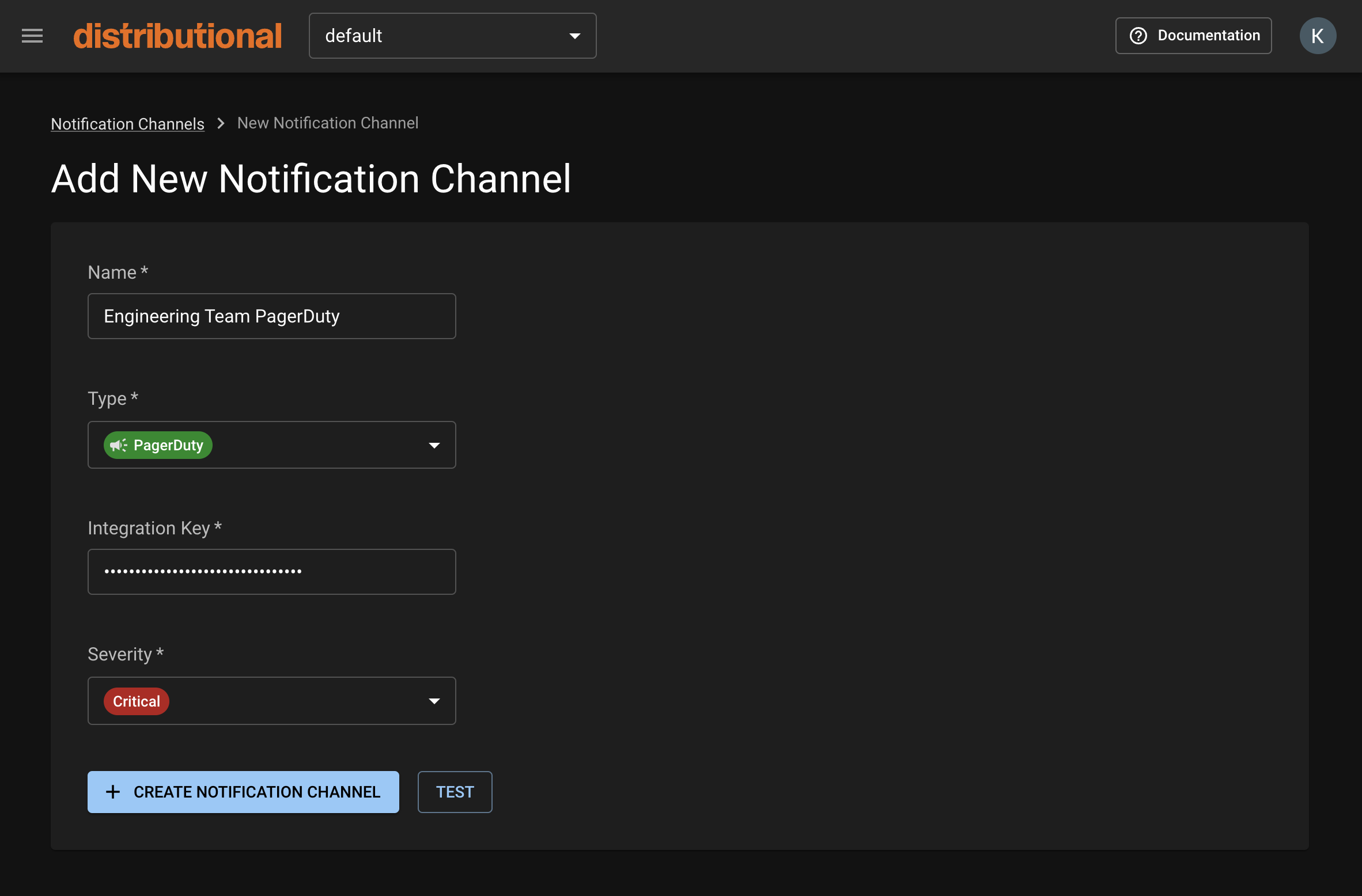
<figure><img src="/files/o4MTe1gEb0lF5ocNfj16" alt=""><figcaption><p>Notification Channel creation form</p></figcaption></figure>

1. In your desired Namespace, choose Notification Channels in the menu sidebar. &#x20;

   **Note:** you must be a Namespace admin in order to do this.<br>
2. Click the **New Notification Channel** button to navigate to the creation form.<br>
3. Complete the appropriate fields.&#x20;

   **Optional:** If you’d like to test that your Notification Channel is set up correctly, click the **Test** button. If it is correctly set up, you should receive a notification through the integration you’ve selected.<br>
4. Click the **Create Notification Channel** button. Your channel will now be available when setting up your Notification.

#### Supported Third-Party Notification Channels

* [PagerDuty](https://www.pagerduty.com/)
* [Slack](https://slack.com/)

**Note**: More coming up in the product roadmap

### Setting up a Notification in your Project

<figure><img src="/files/mmCrUSLOu7jEqrIu4aQW" alt="" width="563"><figcaption><p>Notification creation form</p></figcaption></figure>

1. Navigate to the Project page of your desired project.<br>
2. Under Test Sessions, click the **Configure Notifications** button to navigate to the Project’s Notifications page.<br>
3. Click the **New Notification** button to take you to the creation form.<br>
4. Set your Notification’s name, [criteria](#notification-criteria), and Notification Channels.<br>
5. Click the **Create Notification** button. Your Notification will now notify you when your specified criteria are met.

#### Notification Criteria

<table data-header-hidden><thead><tr><th width="157"></th><th></th></tr></thead><tbody><tr><td><strong>Trigger Event</strong></td><td>The trigger event describes when your Notification is initiated. Trigger events are based on Test Session outcomes.</td></tr><tr><td><strong>Tags Filtering</strong></td><td><p>Filtering by Tags allows you to define which tests in the Test Session you care to be notified about.</p><p></p><p>There are three types of Tags filters you can provide: </p><p><strong>Include</strong>: Must have ANY of the selected</p><p><strong>Exclude</strong>: Must not have ANY of the selected</p><p><strong>Require</strong>: Must have ALL of the selected</p><p></p><p>When multiple types are provided, all filters are combined using ‘AND’ logic, meaning all conditions must be met simultaneously.</p><p></p><p><strong>Note</strong>: This field only pertains to the ‘<em>Test Session Failed</em>’ trigger event</p></td></tr><tr><td><strong>Condition</strong></td><td><p>The condition describes the threshold at which you care to be notified. If the condition is met, your Notification will be sent. </p><p></p><p><strong>Note</strong>: This field only pertains to the ‘<em>Test Session Failed</em>’ trigger event</p></td></tr></tbody></table>

<br>
